
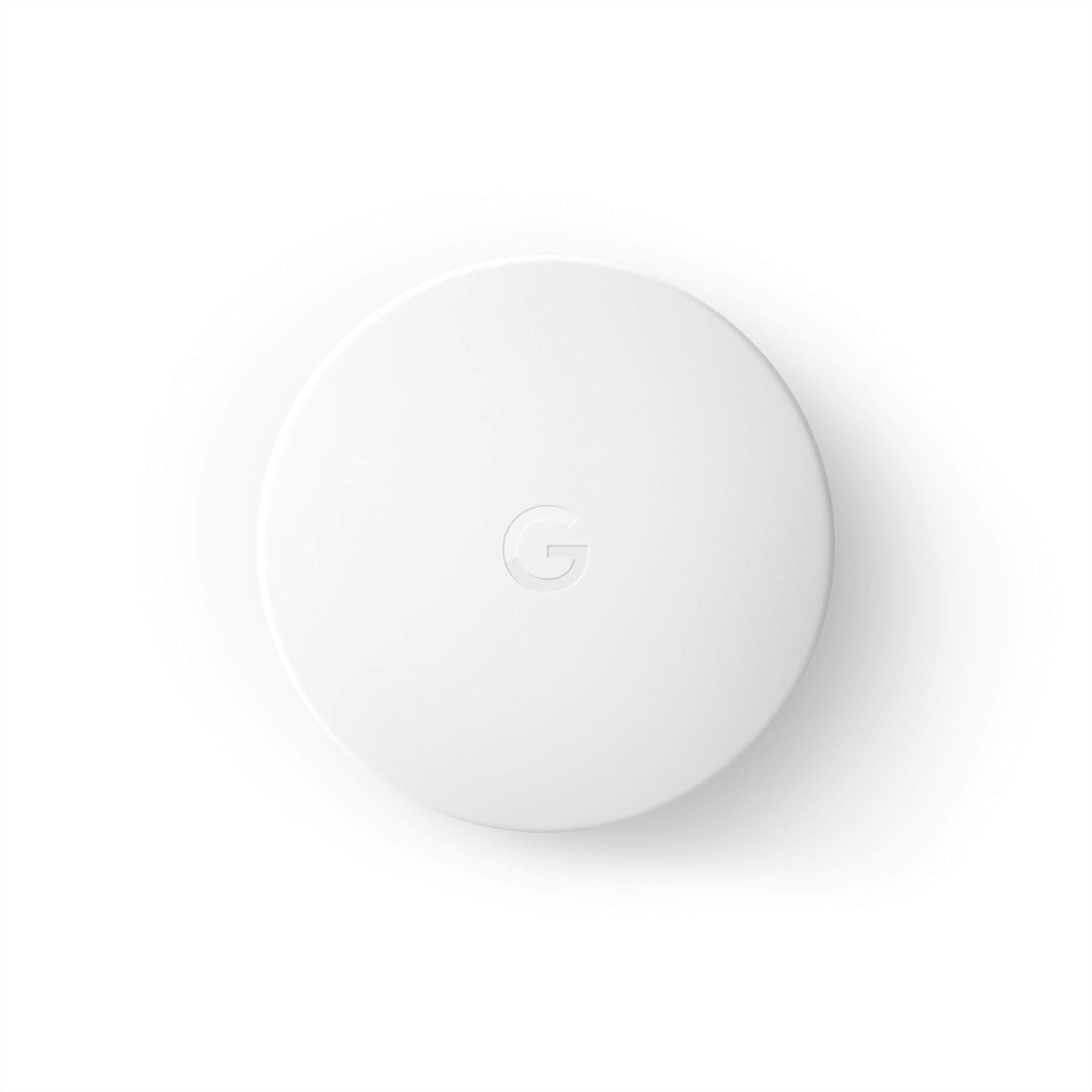
Google Nest Temperature Sensor - Smart Home 1 Pack
The Google Nest Temperature Sensor is a must-have addition to any smart home, ensuring that you can keep your home and family comfortable all year round. With most homes not being…
Manual and instructions
Instruction-focused content generated from the current product data and source context.
Google Nest Temperature Sensor User Manual
Table of Contents
- Introduction
- Package Contents
- Installation and Setup
- Using the Nest App
- Troubleshooting
- Frequently Asked Questions (FAQ)
1. Introduction
The Google Nest Temperature Sensor is designed to work with compatible Nest thermostats to provide accurate temperature readings in specific rooms of your home. This user manual will guide you through the installation, setup, and use of your new Nest Temperature Sensor.
2. Package Contents
Before you begin, make sure you have the following items included in your Nest Temperature Sensor package:
- 1-pack Nest Temperature Sensor
- Mounting screw
- Installation card
- 1 CR123A battery (pre-installed)
3. Installation and Setup
- Choose a room where you spend a lot of time, such as a bedroom or living room, to install the sensor. Place it near chest height for the most accurate temperature measurement.
- Make sure the sensor is within 50 feet of your Nest thermostat so they can communicate.
- Open the battery compartment on the back of the sensor and remove the battery tab to activate the sensor.
- Hang the sensor on the wall using the provided mounting screw or place it on a shelf.
- On your smartphone or tablet, download and install the Nest app from the App Store or Google Play Store.
- Sign in to your Nest account or create a new account if you don't have one.
- Follow the in-app instructions to add the Nest Temperature Sensor to your account and pair it with your compatible Nest thermostat.
4. Using the Nest App
Once the Nest Temperature Sensor is installed and paired with your thermostat, you can use the Nest app to:
- Set a schedule for your sensors
- Choose which room to prioritize at different times of the day
- View temperature readings in your home
5. Troubleshooting
If you encounter issues with your Nest Temperature Sensor, try the following troubleshooting tips:
- Ensure the sensor is within 50 feet of your Nest thermostat.
- Check that the battery is properly installed and has sufficient charge. Replace the battery if necessary.
- Make sure your Nest thermostat and sensor are both connected to your Wi-Fi network.
- Restart your Nest thermostat by holding down the thermostat ring for 10 seconds.
- Remove the sensor from your Nest account and re-add it following the installation and setup instructions.
6. Frequently Asked Questions (FAQ)
Q: Can I use the Nest Temperature Sensor with any Nest thermostat?
A: The Nest Temperature Sensor is compatible with the Nest Learning Thermostat (3rd gen) and the Nest Thermostat E.
Q: How many sensors can I add to my Nest thermostat?
A: You can add up to 6 sensors for each compatible Nest thermostat in your home.
Q: How long does the battery last in the Nest Temperature Sensor?
A: The battery can last up to two years, depending on usage and environmental factors.
Q: Can I set a custom schedule for my Nest Temperature Sensor?
A: The Nest app allows you to set a schedule for your sensors using four predefined time blocks: 9AM-11AM, 11AM-4PM, 4PM-9PM, and 9PM-7AM. These time blocks are fixed and cannot be adjusted.
Q: How accurate is the Nest Temperature Sensor?
A: The Nest Temperature Sensor is designed to provide accurate temperature readings within its specified operating range. However, some users may experience slight variations in readings due to environmental factors or sensor placement.
Frequently asked questions
Q: How does the Nest Temperature Sensor work?
A: The sensor tells the Nest thermostat what the temperature is in the room where it’s placed, and the thermostat uses that reading to control when the system turns on or off to keep that room at the temperature you like.
Q: Where should I install the Nest Temperature Sensor?
A: It is best to install your sensor in a room where you spend a lot of time, like a bedroom or living room. Place it near chest height for the most accurate temperature measurement. And make sure it’s within 50 feet of your thermostat so they can communicate.
Q: Can I control my Nest Temperature Sensor in the Nest app?
A: Yes, you can set a schedule for your sensors or learn more about temperature readings in your home through the Nest app.
Q: Is the Nest Temperature Sensor compatible with all Nest thermostats?
A: The sensor works with compatible Nest thermostats. It is currently compatible with Nest Learning Thermostat (3rd gen) and Nest Thermostat E.
Q: How many sensors can I add to each compatible Nest thermostat in my home?
A: You can add up to 6 sensors for each compatible Nest thermostat in your home.
Q: How long do the batteries last in the Nest Temperature Sensor?
A: The sensor runs on batteries and can last up to two years.
Q: Can I use the Nest Temperature Sensor without a Nest thermostat?
A: No, you need to have a compatible Nest thermostat to use the sensor.
Q: Does the Nest Temperature Sensor also act as a motion sensor?
A: No, it does not act as a motion sensor.
Q: Is there any limitation with scheduling Next remote temperature sensors?
A: Yes, there is a limitation with scheduling Next remote temperature sensors. The temperature sensor schedules must use four predefined blocks of time - 9AM-11 AM, 11AM-4 PM, 4PM-9 PM, and 9 PM-7AM. These schedule times are fixed and cannot be adjusted.
Q: Can I use the Nest Temperature Sensor with Flair smart vents?
A: No, the Nest Temperature Sensor only works with Nest thermostats, and Nest thermostats do not work with Flair smart vents.
Q: How can I find out which generation Google Nest Learning Thermostat I have?
A: You can look at the display, the base, or in the Nest app to find out which Nest thermostat you have. This link might be helpful: https://support.google.com/googlenest/answer/9246551
Specifications
Structured product details pulled from the latest available product data.
| Brand | |
|---|---|
| Manufacturer | |
| Model Number | T5000SF |
| Category | Tools & Home Improvement > Building Supplies > HVAC > Thermostats & Accessories > Accessories |
| Color | White |
| Material | Plastic |
| Weight | 1.6 ounces |
| Dimensions | 2"D x 4"W x 4"H |
| First Available | June 11, 2018 |
| Item Weight | 1.6 ounces |
| Style | 1 Pack |
| Measurement Accuracy | ±1.5% |
| Mounting Type | Wall Mount, Surface Mount |
| Upper Temperature Rating | 104 Degrees Fahrenheit |
| UPC | 813917021378 |
| Global Trade Identification Number | 00813917021378 |
| Product Dimensions | 2"D x 4"W x 4"H |
| Part Number | T5000SF |
| Item model number | T5000SF |
| Batteries | 1 CR123A batteries required. (included) |
| Is Discontinued By Manufacturer | No |
| Size | 1 |
| Finish | Brass |
| Shape | Circular |
| Power Source | Battery Powered |
| Voltage | 3 Volts |
| Item Package Quantity | 1 |
| Number Of Pieces | 1 |
| Display Style | led or lcd |
| Special Features | Remote access and control via Nest app, integration with other Nest thermostats |
| Included Components | 1-pack Nest Temperature Sensor Mounting screw Installation card 3-pack 3 Nest Temperature Sensors 3 Mounting Screws Installation Card |
| Batteries Included? | Yes |
| Batteries Required? | No |
| Battery Cell Type | Lithium |
| ASIN | B07DGWXCNN |
| Customer Reviews | 4.5 4.5 out of 5 stars 16,531 ratings 4.5 out of 5 stars |
| Best Sellers Rank | #7,506 in Tools & Home Improvement (See Top 100 in Tools & Home Improvement) #20 in Home Thermostat Accessories |
| Date First Available | June 11, 2018 |
| Brand | |
| Item dimensions L x W x H | 1.9 x 0.8 x 1.9 inches |
| Material | Plastic |
| Item Weight | 1.6 ounces |
| Style | 1 Pack |
Use this page carefully
ProductReviewGPT pages are AI-assisted summaries. When a source document is available, it should take priority over the generated summary for important operating, warranty, safety, or compliance details.