
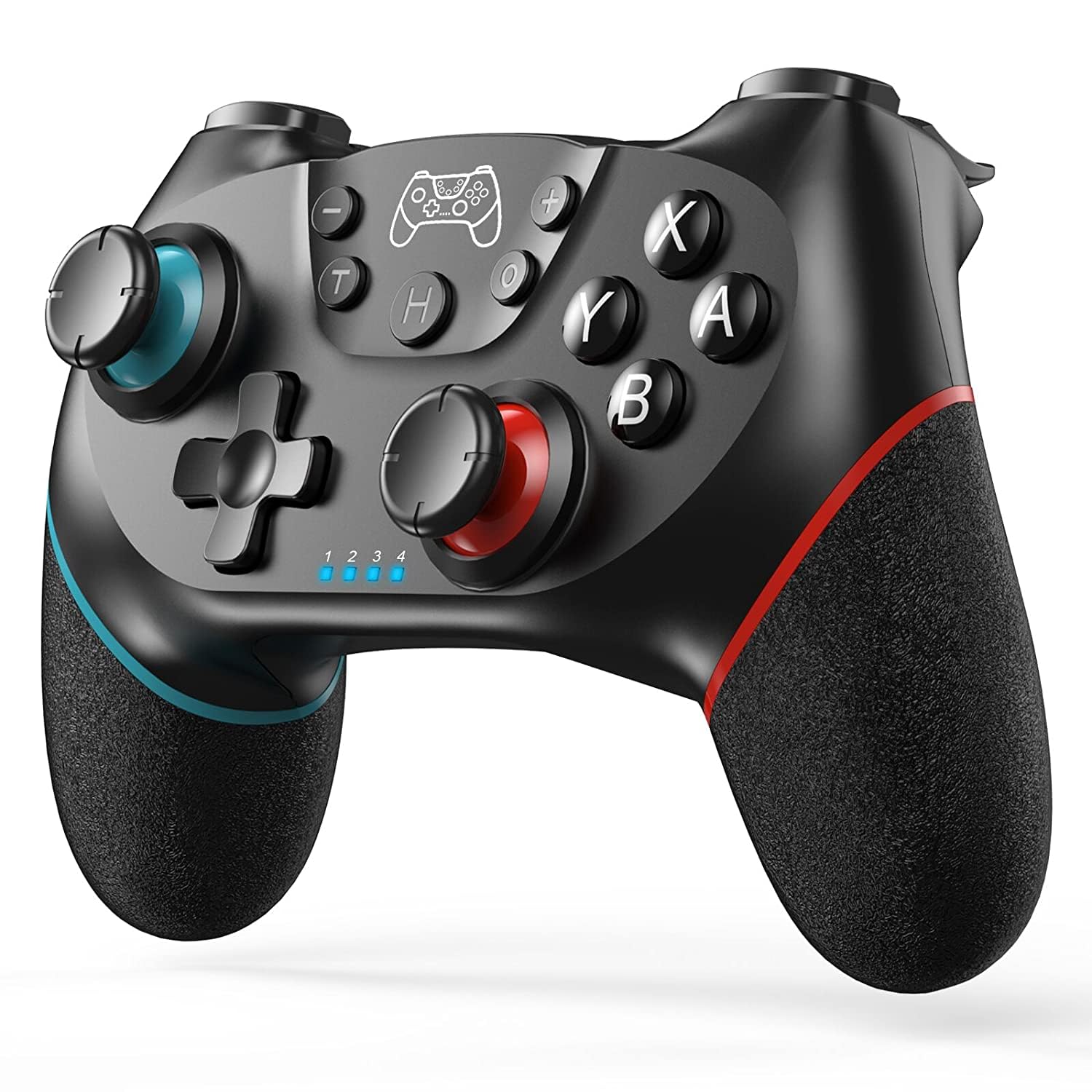
Diswoe SW-01 Wireless Controller for Switch/Lite/OLED/Switch 2 Pro Controller
User manual for the Diswoe SW-01 wireless controller, compatible with Switch, PC, and Android. Features Hall effect joysticks, dual vibration, 6-axis gyro, 550mAh battery for 8 ho…
Manual and instructions
Instruction-focused content generated from the current product data and source context.
Upgraded Wireless Controller for Switch/Lite/OLED/Switch 2 Pro Controller (Model: SW-01)
Thank you for choosing the Diswoe Upgraded Wireless Controller. This manual will guide you through the setup, operation, maintenance, and troubleshooting of your new controller. Please read this manual carefully before use.
1. Universal Compatibility
This Pro Controller is fully compatible with:
- Nintendo Switch
- Nintendo Switch Lite
- Nintendo Switch OLED
- Nintendo Switch 2 (Pro Controller)
- Windows PC (wired connection only)
- Android Phone
It is designed for seamless compatibility with a wide range of games without the need for additional drivers.
Important Compatibility Notes:
- PC Connection: ONLY supports included USB-C cable connection with PC. DOES NOT support wireless Bluetooth connection to PC.
- Unsupported Devices: NOT compatible with Apple TV, Fire Stick TV, Tesla, Xbox, or PlayStation consoles.
- Wake-up Function: DOES NOT SUPPORT WAKE-UP SWITCH 2.
- Audio Functions: DOES NOT SUPPORT AUDIO FUNCTIONS.
2. Setup and Pairing
Before pairing, please ensure your controller is sufficiently charged.
2.1 Pairing with Nintendo Switch/Lite/OLED
- Turn on your Switch console.
- From the HOME Menu, select "Controllers" > "Change Grip/Order".
- On the controller, press and hold the SYNC button (usually a small circular button on the top or back) for a few seconds until the LED indicators start flashing rapidly.
- Once the controller is successfully paired, the player LED(s) on the bottom of the controller will light up solid.
- You can now use your controller to navigate the Switch menu and play games.
2.2 Connecting to Windows PC (Wired Only)
- Connect one end of the included USB-C cable to the controller.
- Connect the other end of the USB-C cable to an available USB port on your Windows PC.
- The PC should automatically detect and install the necessary drivers.
- The controller will be ready for use in compatible PC games.
2.3 Connecting to Android Phone
- Enable Bluetooth on your Android phone.
- On the controller, press and hold the SYNC button for a few seconds until the LED indicators start flashing rapidly.
- On your Android phone, search for new Bluetooth devices.
- Select the controller (it may appear as "Pro Controller" or a similar name) from the list of available devices to pair.
- Once paired, the controller can be used with compatible Android games.
3. Operation
3.1 Hall Effect Joysticks (Non-Drift)
Your Diswoe controller features advanced Hall Effect joysticks. These joysticks use electromagnetic induction for movement detection, eliminating physical contact wear and preventing joystick drift. This provides faster response speed, especially beneficial for FPS shooting games.
3.2 Powerful Functions
- Dual Vibration Motors: Provides excellent vibration feedback for enhanced game immersion.
- 6-Axis Gyro Sensor: Detects controller inclination for quick responses in motion-sensing games.
- Turbo Function: Allows for rapid, repeated button presses. To activate/deactivate Turbo for a button, press and hold the Turbo button, then press the desired action button. Repeat the process to clear Turbo.
- Screenshot Function: Press the dedicated Screenshot button to capture in-game moments.
3.3 Battery and Power Management
- Low Energy Consumption: Designed for extended play.
- Automatic Sleep: The controller will enter sleep mode after a period of inactivity to conserve battery.
- Charging Prompt: LEDs will indicate when the controller is charging.
- Low Voltage Warning: The controller will provide a warning when the battery is low, indicating it needs to be recharged.
- Battery Life: The built-in 550mAh battery provides up to 8 hours of playtime on a full charge.
4. Maintenance
- Cleaning: Use a soft, dry cloth to clean the controller. Avoid using harsh chemicals or abrasive materials.
- Storage: Store the controller in a cool, dry place away from direct sunlight and extreme temperatures.
- Charging: Use the included USB-C cable for charging. Do not use damaged cables or chargers.
- Avoid Drops: While durable, avoid dropping the controller to prevent internal damage.
5. Troubleshooting
Q: Controller won't pair with Switch.
A: Ensure the controller is charged. Go to "Controllers" > "Change Grip/Order" on your Switch, then press and hold the SYNC button on the controller until LEDs flash. Make sure there are no other wireless devices causing interference. If issues persist, try restarting both the Switch and the controller.
Q: Controller disconnects frequently.
A: Ensure you are within the 8-meter wireless range. Check for potential interference from other wireless devices. Ensure the controller is fully charged. If playing on PC, remember it only supports wired connection.
Q: Joystick drift is occurring.
A: This controller features Hall Effect joysticks designed to prevent drift. If you experience drift, ensure the controller's firmware is up to date (if applicable, check the manufacturer's website for updates). If the issue persists, contact customer support.
Q: Controller is not charging.
A: Check if the USB-C cable is securely connected to both the controller and the power source. Try a different USB port or power adapter. Ensure the cable is not damaged.
Q: Buttons are unresponsive or sticky.
A: Ensure the controller is clean and free of debris. If a button is physically stuck, gently try to dislodge any foreign material. If the issue persists, it may indicate internal damage.
Q: Vibration is not working.
A: Check in-game settings to ensure vibration feedback is enabled. Some games allow you to adjust vibration intensity. If still not working, the vibration motors may be faulty.
6. Practical FAQ
Q: Does this controller have NFC functionality?
A: No, this controller does not have NFC functionality.
Q: Can I use this controller to wake up my Switch console?
A: No, this controller DOES NOT SUPPORT WAKE-UP SWITCH 2.
Q: Can I connect a headset to this controller for audio?
A: No, this controller DOES NOT SUPPORT AUDIO FUNCTIONS.
Q: What is the range of the wireless connection?
A: The stable wireless Bluetooth connection provides a reliable signal without delay or drop-off within EIGHT meters.
Q: How long does it take to fully charge the controller?
A: Charging time can vary, but typically a full charge takes a few hours. The 550mAh battery provides up to 8 hours of playtime once fully charged.
Q: Is this controller compatible with other devices like Apple TV or Xbox?
A: No, as stated in the compatibility section, it is NOT compatible with Apple TV, Fire Stick TV, Tesla, Xbox, or PlayStation consoles.
For further assistance, please refer to the manufacturer's website or contact customer support.
Frequently asked questions
Frequently Asked Questions
- Is this controller compatible with the Nintendo Switch 2?
Yes, according to multiple customer reviews, this controller pairs and works with the Nintendo Switch 2 without any issues. - Does this controller support motion controls and rumble?
Yes, the Diswoe SW-01 controller supports gyro axis for motion controls and features dual vibration for an enhanced gaming experience. - Can I use this controller with my PC or Mac?
Yes, this controller can be connected to a PC via Bluetooth for gaming. For Mac users, some reviews indicate that you might need to adjust button mappings (e.g., A and B buttons) in the controller settings. - Does this controller have an amiibo functionality?
No, unlike the official Nintendo Switch Pro Controller, this Diswoe controller does not mention built-in amiibo functionality. - How do I connect the controller to my Nintendo Switch?
Users report that the controller is very easy to connect wirelessly to the Nintendo Switch. Typically, you would go to the 'Controllers' menu on your Switch, select 'Change Grip/Order,' and then press the pairing button on the controller. - Does the controller come with a charging cable?
While not explicitly stated in the product description, similar third-party controllers usually include a USB-C charging cable. The official Nintendo Switch Pro Controller does include one. - Can this controller wake up my Nintendo Switch from sleep mode?
Based on customer feedback, this controller generally does not have the ability to wake up the Nintendo Switch console from sleep mode. You would need to manually turn on the console.
Specifications
Structured product details pulled from the latest available product data.
| Brand | Diswoe |
|---|---|
| Manufacturer | Diswoe |
| Model Number | SW-01 |
| Category | Electronics > Video Games > PC > Accessories > Controllers > Flight Controls |
| Weight | 9.9 ounces |
| First Available | July 28, 2019 |
| ASIN | B07TRQH45S |
| Release date | October 24, 2022 |
| Customer Reviews | 4.4 4.4 out of 5 stars 34,755 ratings 4.4 out of 5 stars |
| Best Sellers Rank | #285 in Video Games (See Top 100 in Video Games) #1 in PC Game Flight Controls |
| Type of item | Video Game |
| Item model number | SW-01 |
| Item Weight | 9.9 ounces |
| Country of Origin | China |
| Batteries | 1 Lithium Polymer batteries required. (included) |
| Date First Available | July 28, 2019 |
Use this page carefully
ProductReviewGPT pages are AI-assisted summaries. When a source document is available, it should take priority over the generated summary for important operating, warranty, safety, or compliance details.