
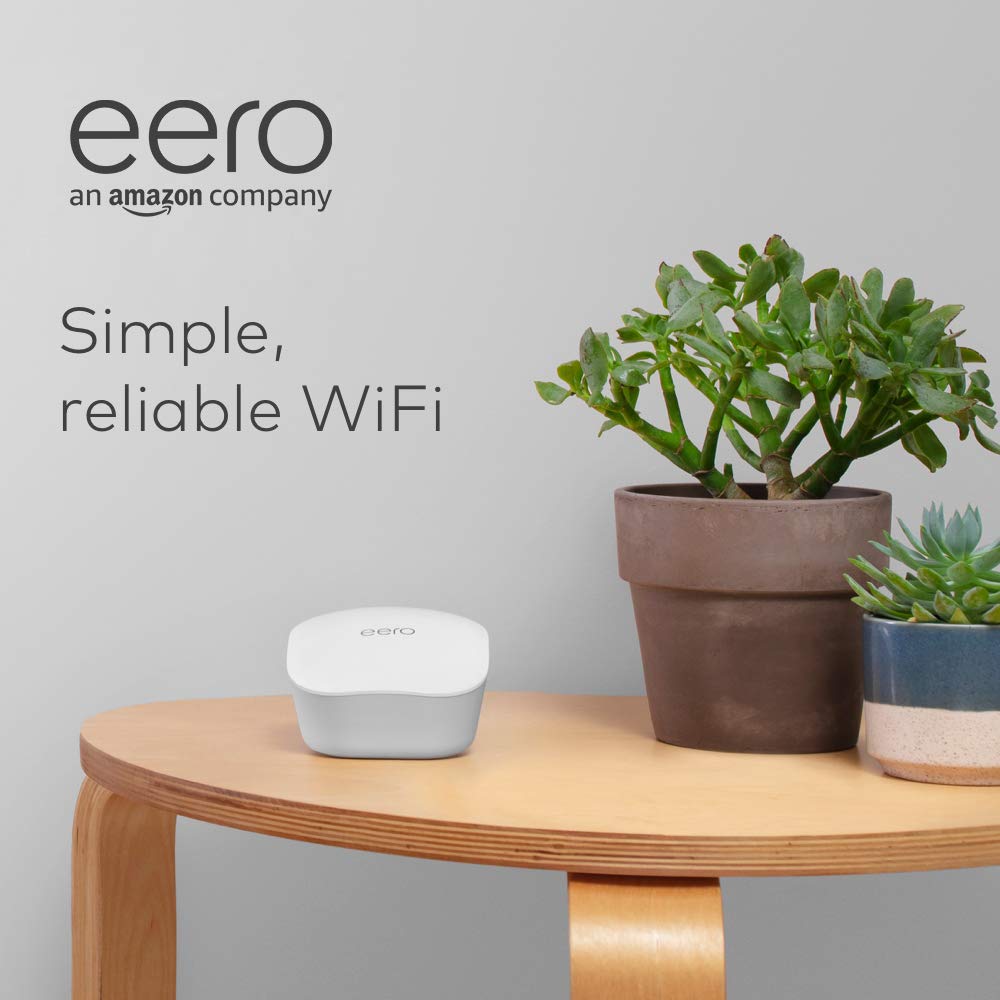
eero Mesh WiFi Router - Amazon Devices
The Amazon eero mesh WiFi router 1-Pack is a standalone router that brings fast and reliable WiFi to your home, covering up to 1,500 sq. ft. With this router, you can easily manag…
Manual and instructions
Instruction-focused content generated from the current product data and source context.
Amazon eero Mesh WiFi Router User Manual
Table of Contents
- Introduction
- Package Contents
- Setting Up Your eero Mesh WiFi Router
- Managing Your eero Network
- Expanding Your eero System
- Troubleshooting Tips
- Frequently Asked Questions
1. Introduction
Welcome to the Amazon eero Mesh WiFi Router, a fast and reliable WiFi solution for your home. This router covers up to 1,500 sq. ft. and works with your existing internet service provider. With easy setup and management through the eero app, you can enjoy seamless WiFi in every corner of your home.
2. Package Contents
- eero Mesh WiFi Router
- Power adapter
- Ethernet cable
- Quick start guide
3. Setting Up Your eero Mesh WiFi Router
- Download the eero app from the App Store or Google Play Store.
- Connect your eero router to your modem using the included Ethernet cable.
- Plug in the power adapter and connect it to your eero router.
- Open the eero app and follow the on-screen instructions to set up your network.
- During setup, you can customize your network name (SSID) and password.
- Once setup is complete, your devices will automatically connect to the new network.
4. Managing Your eero Network
With the eero app, you can easily manage WiFi access for devices and individuals in your home. You can also set up profiles, enable content filtering, and view network usage statistics.
5. Expanding Your eero System
If you need to cover a larger area or add more devices, you can easily expand your eero system with additional eero routers or beacons. To add a new device:
- Open the eero app and tap on the "+" icon.
- Select the type of device you want to add (eero router or beacon).
- Follow the on-screen instructions to complete the setup process.
6. Troubleshooting Tips
- If you're experiencing slow WiFi speeds, try moving your eero router closer to your modem or adding additional eero devices to expand coverage.
- Make sure your eero router is running the latest firmware by checking for updates in the eero app.
- If you're having trouble connecting a device to your eero network, try restarting the device and reconnecting to the network.
- For further assistance, contact eero customer support through the app or visit their support website.
7. Frequently Asked Questions
- Q: Can I use the eero Mesh WiFi Router with my existing internet service provider?
- A: Yes, the eero router is compatible with most internet service providers and connects to your modem to provide WiFi coverage throughout your home.
- Q: How do I set up my eero Mesh WiFi Router?
- A: Download the eero app and follow the on-screen instructions to set up your eero router. The setup process takes less than 10 minutes.
- Q: Can I use eero with Alexa?
- A: Yes, eero works with Alexa devices (not included) to help you manage WiFi access for devices and individuals in your home.
- Q: How do I expand my eero system?
- A: You can add more eero routers or beacons to your system using the eero app. Simply tap on the "+" icon and follow the on-screen instructions to set up your new device.
- Q: What is TrueMesh technology?
- A: TrueMesh technology intelligently routes traffic on your eero network to avoid congestion, buffering, and drop-offs, ensuring a smooth and fast WiFi experience.
Frequently asked questions
Product: Amazon eero mesh WiFi router 1-Pack - Amazon Devices
Specifications:
- Brand: eero
- Coverage: up to 1,500 sq. ft.
- Compatibility: works with Alexa and cross-compatible with other eero products
- Connectivity: connects to modem to bring existing internet connection to every corner of the home
- Setup: easy setup in less than 10 minutes using the eero app
- Features: automatic updates, TrueMesh technology for intelligent routing of traffic, and fast and reliable WiFi for streaming, gaming, and working from anywhere in the home
FAQ:
Q: Hi, I have an integrated modem and router from Comcast Xfinity. How would eero replace the router?
A: You can put your Xfinity modem/router combo device in bridge mode and connect the eero router via ethernet cable. The eero router will then handle all other connections.
Q: Is this the same as a Netgear WiFi extender?
A: No, it is not the same. The eero mesh WiFi router is a standalone router that brings fast and reliable WiFi to your home, while a Netgear WiFi extender extends the range of an existing WiFi network.
Q: Does it support WiFi 6?
A: No, it does not support WiFi 6. If you need WiFi 6 support, you can consider other options such as the tp-link Deco x55.
Q: I have a relatively new HP printer that I cannot connect as it uses WPS. Is there a way around this?
A: Yes, you can manually set a static IP for your printer in its network configuration settings.
Q: Anyone running 1Gbps service through the mesh router?
A: Yes, some users have reported running gigabit service through the eero mesh router with speeds ranging from 850-970 Mbps at the router and 150-180 Mbps on device side.
Q: Is the tp-link Deco x55 better than eero mesh, with more Ethernet ports and faster speeds?
A: The tp-link Deco x55 is a WiFi 6 mesh system with faster speeds and more Ethernet ports per unit compared to the eero mesh router. However, it comes at a higher price point.
Q: Will this hookup to an existing router?
A: Yes, you can connect the eero router via ethernet cable to your existing router and put it in bridge mode.
Q: Do you need more than one eero router?
A: It depends on the area you need to cover. One eero router can cover up to 1,500 sq. ft., but if you need more coverage, you can add additional eero products as needed.
Q: What if your modem has a built-in router? Can you still use this?
A: Yes, you can still use the eero router with a modem/router combo device by putting it in bridge mode.
Q: Do I have to run a network cable to each one of them?
A: No, if you have a network, you can connect multiple eero products wirelessly.
Overall, the Amazon eero mesh WiFi router is a fast and reliable standalone router that is easy to set up and expand as needed. While it does not support WiFi 6, it offers TrueMesh technology for intelligent routing of traffic and automatic updates for improved security. It is a budget-friendly solution for those looking to improve their home WiFi coverage.
Specifications
Structured product details pulled from the latest available product data.
| Brand | eero |
|---|
Use this page carefully
ProductReviewGPT pages are AI-assisted summaries. When a source document is available, it should take priority over the generated summary for important operating, warranty, safety, or compliance details.