
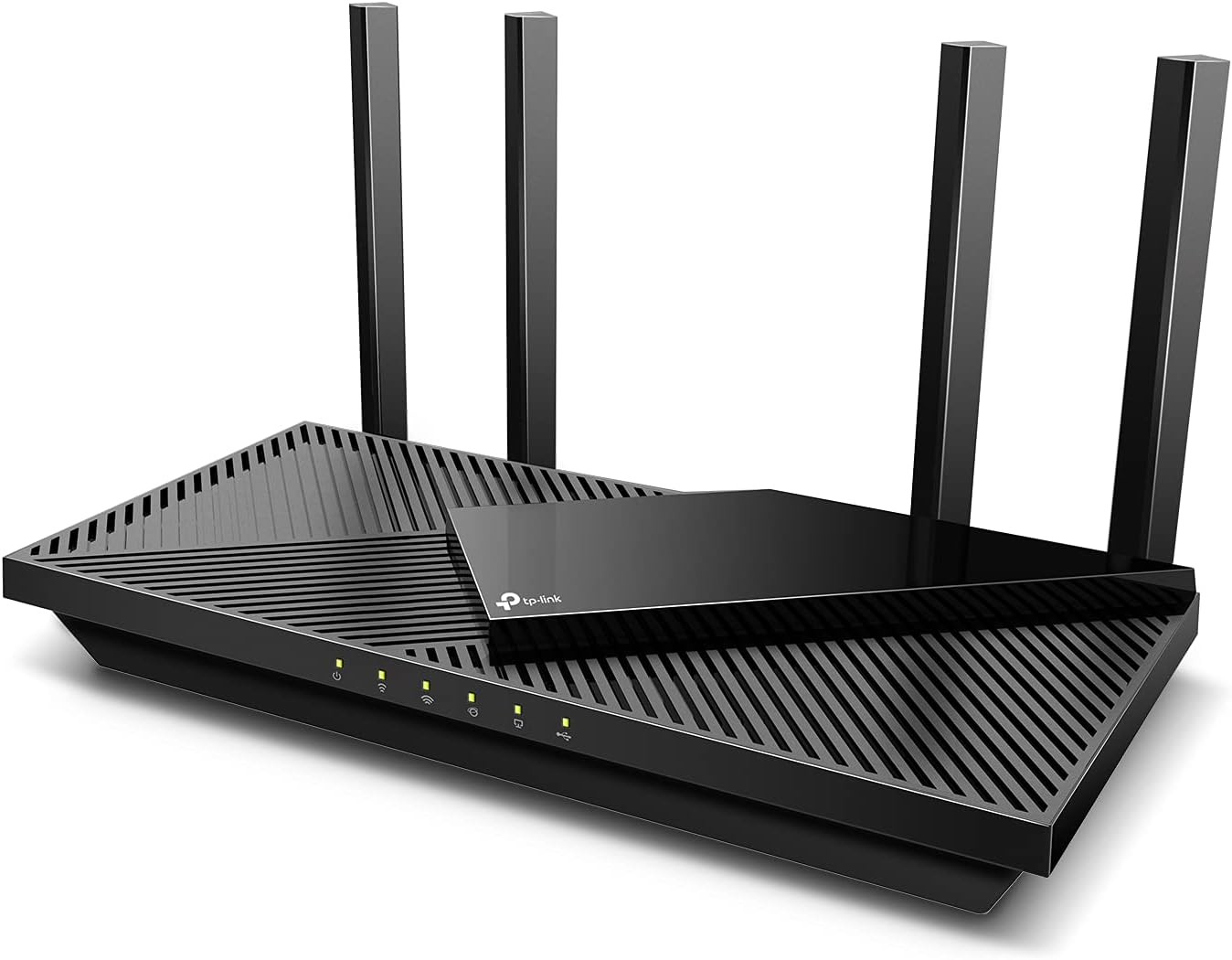
TP-Link Archer AX55 WiFi 6 Router - Dual Band Gigabit Router.
The TP-Link AX3000 WiFi 6 Router is a high-performance wireless router that provides lightning-fast internet speeds and expanded coverage throughout your home. With next-gen Gigab…
Manual and instructions
Instruction-focused content generated from the current product data and source context.
TP-Link AX3000 WiFi 6 Router User Manual
Table of Contents
- Package Contents
- Hardware Overview
- Connecting the Router to Your ISP Modem
- Initial Router Setup with Tether App
- Troubleshooting Tips
- Frequently Asked Questions
1. Package Contents
- TP-Link Archer AX55 WiFi 6 Router
- Power Adapter
- RJ45 Ethernet Cable
- Quick Installation Guide
2. Hardware Overview
The Archer AX55 WiFi 6 Router comes with the following features:
- 4 high-performance external antennas
- 1 WAN (Internet) port
- 4 LAN (Ethernet) ports
- 1 USB port
- Power button and power input
- Status indicator lights
3. Connecting the Router to Your ISP Modem
- Ensure both the ISP modem and the router are powered off.
- Connect one end of the included RJ45 Ethernet cable to the blue WAN port on the router.
- Connect the other end of the Ethernet cable to an available Ethernet port on your ISP modem.
- Power on your ISP modem and wait for it to establish a connection with your ISP. This may take a few minutes.
- Connect the power adapter to the router and plug it into a power outlet. Press the power button on the router to turn it on.
- Wait for the router's status indicator lights to show a stable connection (solid green light for the Internet connection).
4. Initial Router Setup with Tether App
- Download the TP-Link Tether app on your smartphone (available for iOS and Android).
- Connect your smartphone to the router's default Wi-Fi network. The network name (SSID) and password can be found on the label on the bottom of the router.
- Open the Tether app and follow the on-screen instructions to set up your router. This includes setting a new Wi-Fi network name (SSID) and password, as well as configuring other settings as needed.
- Once the setup is complete, reconnect your devices to the new Wi-Fi network using the SSID and password you created during the setup process.
5. Troubleshooting Tips
- If you are unable to connect to the Internet, ensure that the Ethernet cable is securely connected to both the router's WAN port and your ISP modem.
- Power-cycle your modem and router by turning them off, waiting for 30 seconds, and turning them back on. This can help resolve connection issues.
- If you are experiencing slow Wi-Fi speeds, try changing the router's Wi-Fi channel or moving the router to a different location to minimize interference from other devices.
- Update the router's firmware to the latest version through the Tether app or the router's web interface to ensure optimal performance and security.
- Perform a factory reset on the router if you are unable to access the router's settings or if you are experiencing persistent issues. Note that this will erase all custom settings and restore the router to its default configuration.
6. Frequently Asked Questions
- Is the TP-Link Archer AX55 compatible with all Internet Service Providers (ISPs)?
- Yes, the Archer AX55 works with all major ISPs such as AT&T, Verizon, Xfinity, Spectrum, RCN, Cox, CenturyLink, Frontier, and more. A modem is required for most ISPs.
- Does the router support VPN?
- Yes, the Archer AX55 supports VPN server and VPN client functionality.
- What is TP-Link HomeShield?
- TP-Link HomeShield is a premium security service that keeps your home network safe with cutting-edge network and IoT protection. It offers free features such as network security scans, basic parental controls, QoS, weekly/monthly reports, and IoT device identification. HomeShield Pro, a paid service, adds more robust protections and features for $5.99 per month with a 1-month free trial.
- Can I control the router with Amazon Alexa?
- Yes, the Archer AX55 is compatible with Alexa, allowing you to control your router via voice commands.
- What is the range of the Archer AX55?
- The router's range is determined by factors such as the number of antennas, the router's location, and the presence of obstacles and interference. The Archer AX55 features 4 high-performance external antennas and Beamforming technology to provide strong, reliable Wi-Fi coverage throughout your home.
Frequently asked questions
Q: Can I use two AX55s to make a mesh?
A: Apparently, the "official" answer is no. However, if you connect two of these via wired Ethernet cables (back-haul), they will give you what most folks think of as a mesh. You can set up each of them as Access Points (AP) in the "System/Operation Mode" section and make the SSID the same on both. Then turn on their Smart Connect feature. Now you have just a single SSID for the whole house that is for both 2.4 & 5ghz WiFi bands.
Q: Can I use this as an access point?
A: Yes, the router has a dedicated Access Point Mode operation function that can be conveniently configured via the TP-Link Tether app or via a web browser.
Q: Would this router help improve the performance of satellite internet (Hughesnet)?
A: Your internet signal controls your speed. The router is strictly the distributor of that signal. So if that signal is say 10mb, then the router can only distribute 10mbs, however, the wifi6 signal throughout will be fast. Routers are the middleware between modems and devices.
Q: Can you connect this to a dual WAN TP-Link router to get WiFi connectivity to your load balanced 2 ISP connection?
A: If your router has a wired Ethernet connection (which it should), then yes. Since you have a router already, you plug the Ethernet cable into the blue port of that WiFi router and set it up in Access Point Mode.
Q: Why is this TP-Link AX55 router better than the TP-Link AX21 router or just go with the cheaper TP-Link AX21?
A: The Archer AX55 provides significantly more Wi-Fi bandwidth (AX3000 vs AX1800) and a USB 3.0 port on the AX55, as opposed to USB 2.0 on the AX21.
Q: Can this be wall-mounted with the adjustable antennas?
A: Yes, the bottom of the unit has wall mounting key holes.
Q: I have the Cox Gigabit internet package and panoramic wifi. Will this router connect to the network, and will the Cox modem allow internet access?
A: The Archer AX55 must be connected to your existing Internet source via Ethernet cable. Once connected, it will broadcast reliable, dual-band AX3000 Wi-Fi.
Q: My laptop supports encryption WPA2-AES, but the AX55 supports WPA3. Might that be a wee problem?
A: If your laptop does not support WPA3, we recommend setting the router's encryption to WPA2-PSK [AES].
Q: Can you create an authorized MAC address list of at least 20 entries that are allowed to connect to the router and deny access to all other devices?
A: Yes, you can create a list that will either block or only allow devices using MAC addresses.
Q: Once I have done my setup, can I move it upstairs without having the Ethernet cable?
A: No, it must remain connected to your Internet source via Ethernet cable.
Source documents
Official manuals and related source files discovered for this product.

Specifications
Structured product details pulled from the latest available product data.
| Brand | TP-Link |
|---|---|
| Manufacturer | TP-Link |
| Model Number | Archer AX55 |
| Category | Electronics > Computers & Accessories > Networking Products > Routers |
| Weight | 1.66 pounds |
| Dimensions | 12.99 x 9.45 x 2.87 inches |
| First Available | October 11, 2021 |
| Product Dimensions | 12.99 x 9.45 x 2.87 inches |
| Item Weight | 1.66 pounds |
| ASIN | B09G5W9R6R |
| Item model number | Archer AX55 |
| Customer Reviews | 4.4 4.4 out of 5 stars 10,101 ratings 4.4 out of 5 stars |
| Best Sellers Rank | #476 in Electronics (See Top 100 in Electronics) #4 in Computer Routers |
| Date First Available | October 11, 2021 |
| Country of Origin | Vietnam |
| Model Name | Archer AX55 |
| Special Feature | QoS, Guest Mode, WPS, Internet Security, Remote Access |
| Frequency Band Class | Dual-Band |
| Wireless Communication Standard | 802.11n, 802.11ax, 802.11b, 802.11ac, 802.11g |
| Compatible Devices | Gaming Console, Security Camera, Personal Computer, Tablet, Smart Television, Smartphone |
| Frequency | 5 GHz |
| Recommended Uses For Product | Gaming, Home |
| Included Components | Wi-Fi Router Archer AX55, Power Adapter, RJ45 Ethernet Cable, Quick Installation Guide |
| Connectivity Technology | Wi-Fi |
Use this page carefully
ProductReviewGPT pages are AI-assisted summaries. When a source document is available, it should take priority over the generated summary for important operating, warranty, safety, or compliance details.